Component | Requirement | |
Schema master | The schema master must be running any of the following:
| |
Global catalog server | In each Active Directory site where you plan to install Exchange 2010, you must have at least one global catalog server running any of the following:
| |
Domain controller | In each Active Directory site where you plan to install Exchange 2010, you must have at least one writeable domain controller running any of the following:
| |
Active Directory forest | Active Directory must be at Windows Server 2003 forest functionality mode or higher. | |
24 March, 2010
Directory Service Requirements for Exchange 2010


Extending Database Size limit for Exchange 2010 Standard edition
You can use Registry Editor to modify a database size limit in Microsoft Exchange Server 2010. The default database size limit for Exchange 2010 Standard Edition is 50 gigabytes (GB). There is no default database size limit for the Exchange 2010 Enterprise Edition. The Exchange store checks any database size limits periodically and dismounts a database when the size limit is reached. You can modify the database size limit by adding or changing a value in the registry.
- Start Registry Editor (regedit).
- Locate the following registry subkey:
HKEY_LOCAL_MACHINE\SYSTEM\CurrentControlSet\Services\MSExchangeIS\<SERVER NAME>\Private-<database GUID>
- If the Database Size Limit in GB DWORD exists for the subkey, change its value to the desired size in gigabytes.
- If the Database Size Limit in GB DWORD doesn't exist for the subkey, create a new DWORD with that name, and then set its value to the desired size in gigabytes.
You can get the database guide by the below powershell cmdlet
Get-MailboxDatabase -Identity "<server name>\<database name>" | Format-Table Name, GUID
Supported Exchange 2010 Coexistence Scenarios
The following table lists the scenarios in which coexistence between Exchange 2010 and earlier versions of Exchange are supported.
Coexistence of Exchange 2010 and earlier versions of Exchange Server
Exchange version | Exchange organization coexistence | |
Exchange 2000 Server | Not supported | |
Exchange Server 2003 | Supported | |
Exchange 2007 | Supported | |
Mixed Exchange 2007 and Exchange Server 2003 organization | Supported | |
You can't upgrade an existing Exchange 2000 organization directly to Exchange 2010. You must first upgrade the Exchange 2000 organization to either an Exchange 2003 or Exchange 2007 organization, and then you can upgrade the Exchange 2003 or Exchange 2007 organization to Exchange 2010. It is recommend that you upgrade your organization from Exchange 2000 to Exchange 2003, and then upgrade from Exchange 2003 to Exchange 2010.
26 January, 2010
Try Out: Windows 7 God Mode
Create a folder in Windows 7 and rename it to
GodMode.{ED7BA470-8E54-465E-825C-99712043E01C}
Then check out its contents.
18 January, 2010
Exchange 2007 Mail Submission service stops automatically
Recently I was involved in an issue where Microsoft Exchange Mail submission used to stop silently in day or two on the passive node of the CCR cluster. This used to happen only on one of the Node of the CCR Cluster. There will be no event generated in the logs. This service is responsible for submitting mails from the Mailbox Server to the HUB Server. So in case if the resource fails over to this node then the users will face mail issues. In this case, if the user tries to send a mail, it will stay on their outbox until we manually go and start the service or failback the resources to the other node. While starting the service it used to start without any issue.
I was sure that there is nothing wrong with the server hardware or Operating system or Exchange configuration on this node as there was not a single error getting generated for this issue. I checked the service setting under Service Manager and cross checked with the other node. It was same. I did some goggling but unfortunately couldn't get any answer for this issue. It made me wonder "why am I the only one to face this issue".
After sleeping on this issue for 2 day, I thought of digging in the registry of this node. I went to registry value of HKLM\system\CurrentControlSet\Services\MSExchangeMailSubmission. I starting checking the settings of each registry of this node with the other node. There I found a difference in the values of "FailureActions". On the passive the values were as per the screen Shot in fig 1. While on the passive node it was as per fig 2.


I immediately took the backup of the registry and made the changes on the passive node same as that of the active node. I did some testing by stopping and starting services as well as by doing failover of resources from the active node to the passive node and checking the mailflow. After the testing I failed the resources back to the other node. The services which used to stop earlier in a day or two is now running for over two weeks now.
Note: Please make sure to have a restorable backup of Exchange and registry before performing any changes.
07 October, 2009
Upgrading to Exchange 2007 SP2
Exchange 2007 SP2 Overview
Microsoft Exchange Server 2007 SP2 helps meet the challenges and business needs of any Organization with the stake in messaging system. Exchange 2007 SP2 is a mission-critical communications tool that enables employees to be more productive and access their information anytime from anywhere. For the Administrators, Exchange Server 2007 SP2 provides advanced protection options against email security threats, such as spam and antivirus as well as tools to help manage internal compliance and high availability needs.
Whats New in Exchange 2007 SP2
- Enhanced Backup Functionality
Exchange 2007 SP2 includes VSS plug-in for Windows Server backup to support Exchange backups. Once Sp2 is installed, Windows Server backup can be used for backup and restore of Exchange Server 2007 SP2 databases. The new plugin is delivered in the form of a single executable called wsbexchange.exe. - Deploying Exchange Server 2010
Before deploying Exchange 2010 in the coexistence mode of Exchange 2007, all the CAS Server must be upgraded to Exchange 2007 SP2. In addition, all Exchange 2007 Server in Active Directory site, regardless to role must be upgraded to Exchange 2007 SP2. - Enhanced Auditing
New Exchange auditing events and audit log repository enable Exchange Administrators to more easily audit the activities occurring on Exchange Servers. It allows the right balance of granularity, performance and easy access to audited events via a dedicated audit log repository. This simplifies the auditing process and reviewing of audited events in a dedicated location. - Dynamic AD Schema Validation
The dynamic AD Schema update and validation feature allows for future Schema updates to be dynamically deployed as well as proactively preventing conflicts whenever a new property is added to the AD Schema. Once this capability is deployed it will enable easier management of schema updates and will support issues when adding properties that don't exist in the AD Schema - Public Folder Quota Management
Exchange 2007 SP2 provides more efficient way to manage Public Folder Quotas by improving the cmdlets and removing the dependency authoring and visioning Administration to perform management tasks. - Centralized Organization Settings
There are several new cmdlets parameters that have been added that enable centralized management of many of the Exchange Organization settings.
Step by step process for Upgrading Exchange 2007 SP1 to SP2
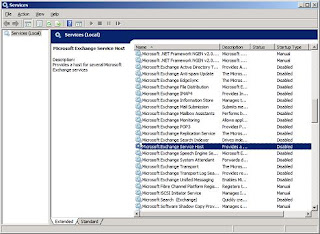

Once you are readyfor upgradation, download Exchange 2007 SP2 from the link. Extract SP2 and run setup.exe. You will get the screenshot as below
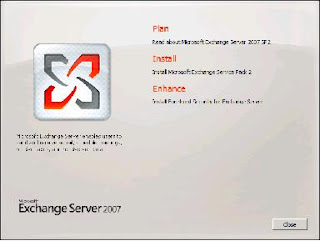
Click on install Exchange 2007 Service Pack 2

On the introduction screen click on next.

On the license page click on I accept and click on next.
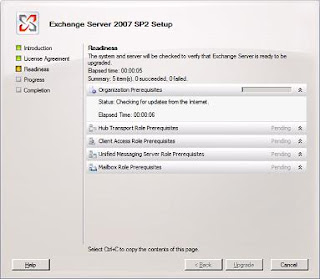
Readiness check will be performed. Once completed Click on Upgrade to start the upgradation.

It will then start upgrading Exchange Server to SP2. During this process Exchange services will stopped.
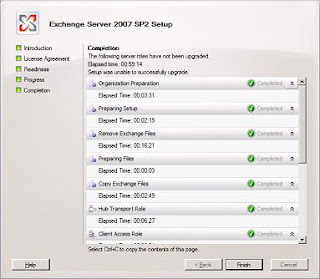
On successful completion page click on Finish. Your Exchnage Server is now upgraded to Service Pack 2.
Please let me know if the above article was able to provide you with the information you needed.
Deploying Exchange 2007 SP1
Exchange 2007 Server Roles
By taking care of the above we are now ready for implementing Exchange 2007 SP1. Given below are the step by step process for implementing Exchange 2007 SP1. Pop in Exchange 2007 installable DVD and double click on Setup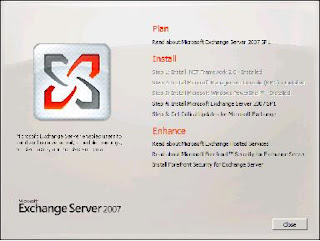 You will be presented with the above screen. Step 1, 2 and 3 will be highlighted if the required prerequisites are missing. For installing Exchange 2007 SP1 click on Step4. You will be presented with the below screen.
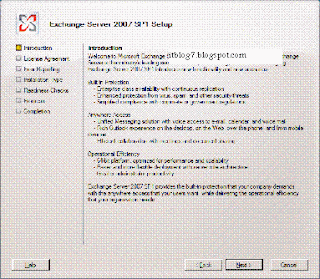
This screen provides brief introduction about Exchange 2007 SP1. Click on next
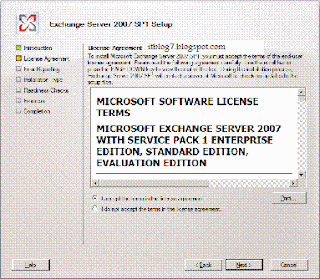
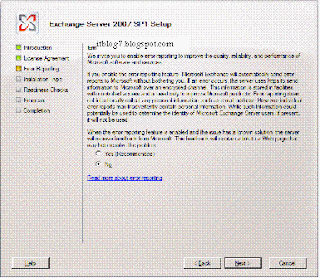
The above screen is for how you want to report errors to Microsoft. For this deployment sake I have selected No. Click on next to get the below screen.
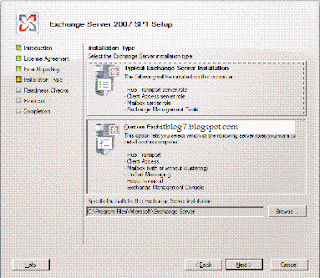
The above window gives you the option to choose the role that needs to be deployed on the Exchange Server. Click on Custom to select the roles that needs to be deployed.
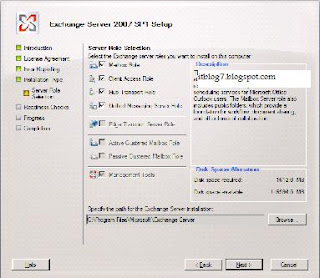
I have selected all the roles that can be deployed on a single server. Edge server can only be deployed in the DMZ. Click next.
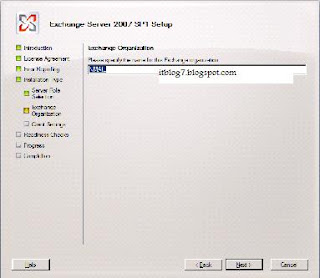
Type the name of the Exchange Organization. For this deployment I have put as NMAIL. Click on next.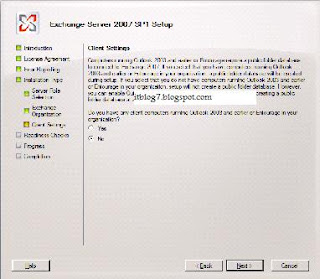
On the above select Yes if any of your users are using clients older than Outlook 2003. For this deployment I have selected No. Click on Next.
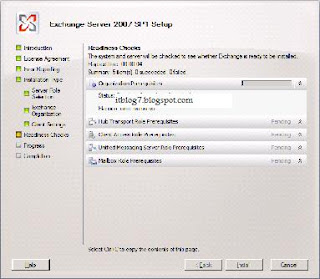
On this screen the setup does a readiness check before starting the installation. Once done click on Install
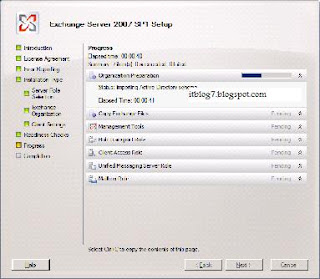
The installation process starts for the roles selected. Click on Next.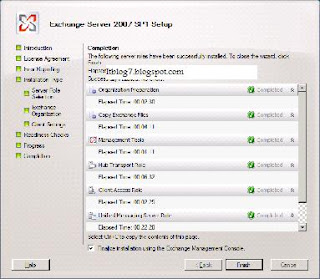
The screen above gives you the status of the deployment. You get completed for all the roles selected for deployment that indicates you are done with the deployment.
- Mailbox Role: The Mailbox role provides email storage and advanced scheduling services for Microsoft Office Outlook users. The Mailbox Server role also includes public folders
- Client Access Role: The Client Access Role (CAS) enables clients to connect to their Exchange mailbox through Outlook Web Access, POP, IMAP or through mobile device using activesync. this role also provides free buy lookup and offline address books.
- HUB Transport Role: The HUB Transport role (HUB) provides routing within a AD Site. HUB Server can be used for applying messaging policies, security polices, antispam and antivirus policies to email messages in Transport.
- Unified Messaging role: The Unified Messaging role (UM) role provides connectivity between a corporate telephony system and Exchange Server. Clients can access their mailboxes from any telephony or mobile device using Outlook Mobile Access (OMA) and perform almost the same functionality as OWA.
- Edge Transport Role: The Edge Transport role performs antispam amd antivirus filterin and applies messaging and security policies to the inbound and outbound external messages in the transport. This role is deployed in the perimeter network.
Prerequisites for Deploying Exchange 2007
- Domain Name System (DNS)
- Windows 2003 based Active Directory.
- The Forest and Domain functional level should be Windows 2003
- The server on which Exchange needs to be deployed should be member of Active Directory Domain.
- AD DS and IIS roles is required to be installed from Server Manager
- .Net and Windows Powershell features is required to be installed.
By taking care of the above we are now ready for implementing Exchange 2007 SP1. Given below are the step by step process for implementing Exchange 2007 SP1. Pop in Exchange 2007 installable DVD and double click on Setup
You will be presented with the above screen. Step 1, 2 and 3 will be highlighted if the required prerequisites are missing. For installing Exchange 2007 SP1 click on Step4. You will be presented with the below screen.This screen provides brief introduction about Exchange 2007 SP1. Click on next
The next screen is for license agreement. Accept on the license agreement and click on next.
The above screen is for how you want to report errors to Microsoft. For this deployment sake I have selected No. Click on next to get the below screen.
The above window gives you the option to choose the role that needs to be deployed on the Exchange Server. Click on Custom to select the roles that needs to be deployed.
I have selected all the roles that can be deployed on a single server. Edge server can only be deployed in the DMZ. Click next.
Type the name of the Exchange Organization. For this deployment I have put as NMAIL. Click on next.
On the above select Yes if any of your users are using clients older than Outlook 2003. For this deployment I have selected No. Click on Next.
On this screen the setup does a readiness check before starting the installation. Once done click on Install
The installation process starts for the roles selected. Click on Next.
The screen above gives you the status of the deployment. You get completed for all the roles selected for deployment that indicates you are done with the deployment.
Please let me know if the above article was able to provide you with the information you needed.
05 October, 2009
Configuring permissions with SCCM
Object | Rights to create | Rights to modify | Rights to delete | Rights to distribute |
Boot Images | Create\Boot image package, Read\Boot image package | Modify\Boot image package, Read\Boot image package | Delete\Boot image package, Read\Boot image package | Read\Boot image package, Modify\Boot image package, Distribute\Boot image package, Read\Site |
Computer Association | Create\Computer association, Read\Computer association, Read\Collection | Modify\Computer association, Read\Computer association | Delete\Computer association, Read\Computer association | Not applicable |
Operating System Images | Create\OS image, Read\OS image | Modify\OS image, Read\OS image | Delete\OS image, Read\OS image | Modify\OS image, Read\OS image, Distribute\OS image, Read\Site |
Operating System Install Pacakges | Create\OS install package, Read\OS install package | Modify\OS install package, Read\OS install package | Delete\OS install package, Read\OS install package | Modify\OS install package, Read\OS install package, Distribute\OS install package, Read\Site |
Task Sequences | Create\Task sequence package, Read\Task sequence package, Modify\Task sequence package | Modify\Task sequence package, Read\Task sequence package | Delete\Task sequence package, Read\Task sequence package | Modify\Task sequence package, Read\Task sequence package, Distribute\Task sequence package, Read\Site |
Advertisement (for task sequence) | Read\Task sequence package, Read\Collection, Advertise\Collection, Read\Package, Create\Advertisement | Modify\Advertisement, Read\Advertisement | Delete\Advertisement, Read\Advertisement | Not applicable |
Task sequence bootable media | Read\Task sequence package, Create Task sequence media\Task sequence package, Read\Site, Manage OSD and ISV Proxy Certificates\Site, Read\Boot image | Modify\Task sequence package, Read\Task sequence package | Delete\Task sequence package, Read\Task sequence package | Not applicable |
Drivers | Create\Device driver, Read\Device driver | Modify\Device driver, Read\Device driver | Delete\Device driver, Read\Device driver | Not applicable |
Driver package | Create\Driver package, Read\Device driver | Modify\Driver package, Read\Driver package, Distribute\Driver packages | Delete\Driver package, Read\Driver package | Not applicable |
13 September, 2009
VMC to Hyper V
VMC to Hyper-V Import Tool
http://technet.microsoft.com/en-us/magazine/2009.03.utilityspotlight.aspx?pr=blog
02 September, 2009
Exchange 2010 Overview
Exchange 2010 has some carried over features from Exchange 2007 as well as some improved and new features broadly falling under the below categories
- Protection and Collaboration
- Anywhere Access
- Flexibility and Reliability
Listed below are the features that have carried over from Exchange 2007 as well as improved and new features falling under each of these categories
Protection and Collaboration
The goal of protection and collaboration is to achieve increased IT governance compliance with advanced tools to protect communication and manage the Messaging infrastructure.
Some of the features that have been carried over from Exchange 2007 are:
- On premise and hosted protection from virus and spam
- Compliance to corporate and government regulation
- Mobile device security and management policies
While some of the features that have been enhanced and new with Exchange 2010 are
- Email archiving and more powerful retention policies
- Automated rights management and protection of email
- Powerful multi mailbox search UI for eDiscovery or Legal reasons
Anywhere Access
The goal of the Anywhere Access is to help and manage communication load by offering an easy to navigate, Universal inbox with advanced messaging feature.
Some of the features carried over from Exchange 2007 are
- Outlook experience on Web, Phone and mobile device
- Single inbox for voice mail, email and fax
- Increased productivity with improved calendar experience
While some of the features that have been enhanced and new with Exchange 2010 are
- Easier inbox navigation with updated conversation view
- Enhanced voice mail with text preview
- Share free busy calendar information with external partners
Flexibility and Reliability
The goal is to provide flexibility needed to operate a scalable high performing and easy to administer messaging infrastructure.
Some of the features carried over by Exchange 2007 are
- Improved installation and deployment scenarios
- High Availability through Continuous Replication
- Simplified management console and command line shell
While some of the features that have been enhanced and new with Exchange 2010 are
- Choice of solution delivery with addition of hosted service
- Single platform for High Availability and Disaster Recovery
- Role based Administration and User self service
Please let me know if the above article was able to provide you with the information you needed.
Subscribe to:
Posts (Atom)