Showing posts with label Exchange 2007. Show all posts

07 October, 2009

Upgrading to Exchange 2007 SP2

Exchange 2007 SP2 Overview

Microsoft Exchange Server 2007 SP2 helps meet the challenges and business needs of any Organization with the stake in messaging system. Exchange 2007 SP2 is a mission-critical communications tool that enables employees to be more productive and access their information anytime from anywhere. For the Administrators, Exchange Server 2007 SP2 provides advanced protection options against email security threats, such as spam and antivirus as well as tools to help manage internal compliance and high availability needs.


Whats New in Exchange 2007 SP2


  • Enhanced Backup Functionality
    Exchange 2007 SP2 includes VSS plug-in for Windows Server backup to support Exchange backups. Once Sp2 is installed, Windows Server backup can be used for backup and restore of Exchange Server 2007 SP2 databases. The new plugin is delivered in the form of a single executable called wsbexchange.exe.

  • Deploying Exchange Server 2010
    Before deploying Exchange 2010 in the coexistence mode of Exchange 2007, all the CAS Server must be upgraded to Exchange 2007 SP2. In addition, all Exchange 2007 Server in Active Directory site, regardless to role must be upgraded to Exchange 2007 SP2.

  • Enhanced Auditing
    New Exchange auditing events and audit log repository enable Exchange Administrators to more easily audit the activities occurring on Exchange Servers. It allows the right balance of granularity, performance and easy access to audited events via a dedicated audit log repository. This simplifies the auditing process and reviewing of audited events in a dedicated location.

  • Dynamic AD Schema Validation
    The dynamic AD Schema update and validation feature allows for future Schema updates to be dynamically deployed as well as proactively preventing conflicts whenever a new property is added to the AD Schema. Once this capability is deployed it will enable easier management of schema updates and will support issues when adding properties that don't exist in the AD Schema

  • Public Folder Quota Management
    Exchange 2007 SP2 provides more efficient way to manage Public Folder Quotas by improving the cmdlets and removing the dependency authoring and visioning Administration to perform management tasks.

  • Centralized Organization Settings
    There are several new cmdlets parameters that have been added that enable centralized management of many of the Exchange Organization settings.


Step by step process for Upgrading Exchange 2007 SP1 to SP2

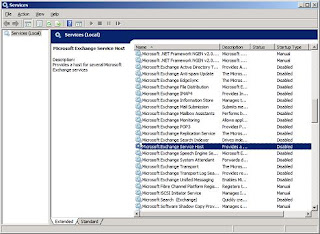
If you are upgrading Exchange 2007 Server in production, then make sure to have a restorable backup of Exchange Configuration and its databases. Although the upgradation is straight forward and come clean bu it is advisable to have the backups in place. During the upgradation process the Exchange services will be stopped and disabled. The downtime may vary from one server to another. You may plan for a downtime of 30 - 45 mins. See screenshots below


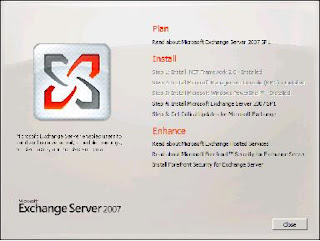
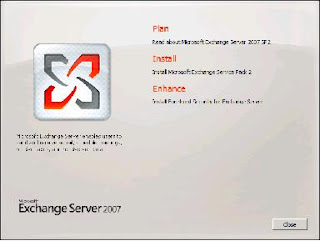
Once you are readyfor upgradation, download Exchange 2007 SP2 from the link. Extract SP2 and run setup.exe. You will get the screenshot as below


Click on install Exchange 2007 Service Pack 2


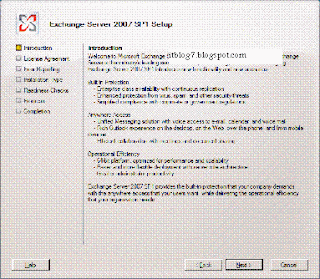
On the introduction screen click on next.


On the license page click on I accept and click on next.


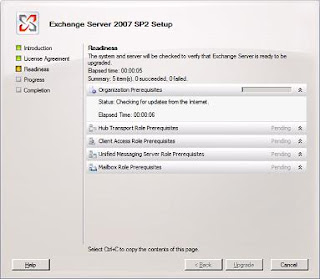
Readiness check will be performed. Once completed Click on Upgrade to start the upgradation.


It will then start upgrading Exchange Server to SP2. During this process Exchange services will stopped.


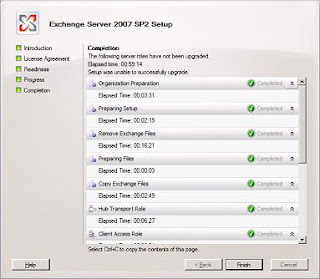
On successful completion page click on Finish. Your Exchnage Server is now upgraded to Service Pack 2.


Please let me know if the above article was able to provide you with the information you needed.

Deploying Exchange 2007 SP1

Exchange 2007 Server Roles
  • Mailbox Role: The Mailbox role provides email storage and advanced scheduling services for Microsoft Office Outlook users. The Mailbox Server role also includes public folders
  • Client Access Role: The Client Access Role (CAS) enables clients to connect to their Exchange mailbox through Outlook Web Access, POP, IMAP or through mobile device using activesync. this role also provides free buy lookup and offline address books.

  • HUB Transport Role: The HUB Transport role (HUB) provides routing within a AD Site. HUB Server can be used for applying messaging policies, security polices, antispam and antivirus policies to email messages in Transport.
  • Unified Messaging role: The Unified Messaging role (UM) role provides connectivity between a corporate telephony system and Exchange Server. Clients can access their mailboxes from any telephony or mobile device using Outlook Mobile Access (OMA) and perform almost the same functionality as OWA.
  • Edge Transport Role: The Edge Transport role performs antispam amd antivirus filterin and applies messaging and security policies to the inbound and outbound external messages in the transport. This role is deployed in the perimeter network.

Prerequisites for Deploying Exchange 2007

  • Domain Name System (DNS)

  • Windows 2003 based Active Directory.

  • The Forest and Domain functional level should be Windows 2003

  • The server on which Exchange needs to be deployed should be member of Active Directory Domain.

  • AD DS and IIS roles is required to be installed from Server Manager

  • .Net and Windows Powershell features is required to be installed.

By taking care of the above we are now ready for implementing Exchange 2007 SP1. Given below are the step by step process for implementing Exchange 2007 SP1. Pop in Exchange 2007 installable DVD and double click on Setup
You will be presented with the above screen. Step 1, 2 and 3 will be highlighted if the required prerequisites are missing. For installing Exchange 2007 SP1 click on Step4. You will be presented with the below screen.


This screen provides brief introduction about Exchange 2007 SP1. Click on next


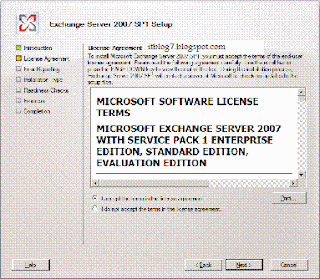
The next screen is for license agreement. Accept on the license agreement and click on next.


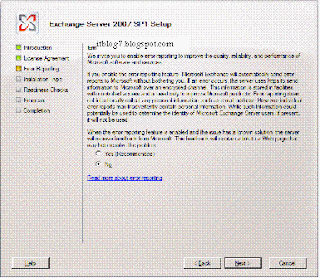
The above screen is for how you want to report errors to Microsoft. For this deployment sake I have selected No. Click on next to get the below screen.


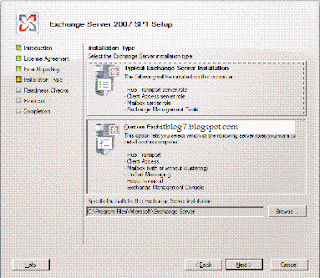
The above window gives you the option to choose the role that needs to be deployed on the Exchange Server. Click on Custom to select the roles that needs to be deployed.


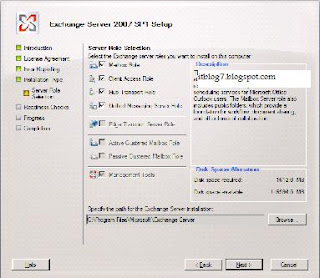
I have selected all the roles that can be deployed on a single server. Edge server can only be deployed in the DMZ. Click next.


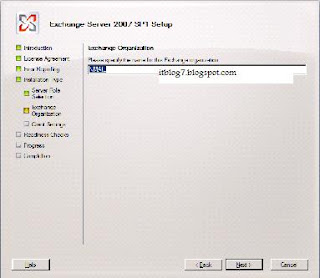
Type the name of the Exchange Organization. For this deployment I have put as NMAIL. Click on next.

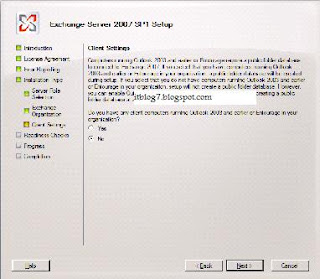
On the above select Yes if any of your users are using clients older than Outlook 2003. For this deployment I have selected No. Click on Next.


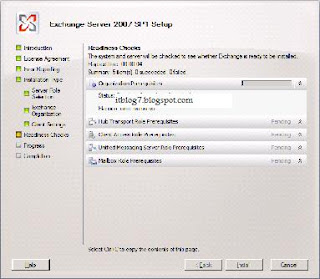
On this screen the setup does a readiness check before starting the installation. Once done click on Install


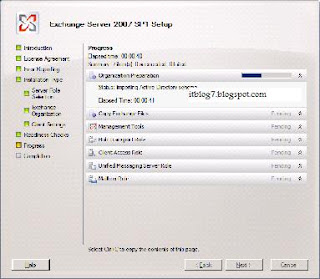
The installation process starts for the roles selected. Click on Next.

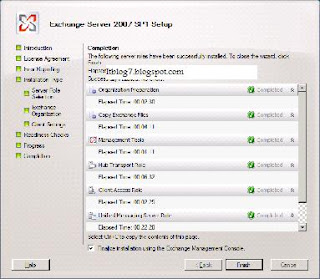
The screen above gives you the status of the deployment. You get completed for all the roles selected for deployment that indicates you are done with the deployment.
Please let me know if the above article was able to provide you with the information you needed.

03 August, 2009

Benefits and features of Exchange Unified Messaging

Benefits of Exchange Unified Messaging

• Exchange Unified Messaging enables users to access their mailboxes from various devices such as telephones and mobiles using Outlook Voice Access (OVA).

• Voice mail, email, calendar data and fax messages are stored in user’s inbox.

• Unified Messaging helps in reducing the cost by integrating email, voice mail and fax, which otherwise would require separate infrastructure.

• Play voice message on PC or phone.

• Provides out of office voice mail greetings to the callers


Features of Exchange Unified Messaging

• Exchange ActiveSync: Exchange ActiveSync is a protocol to connect mobile devices such as smart phones or PDAs to the Exchange Server. It help in accessing mailbox, view email and fax messages, view and change calendar information and listen to voice message. It uses direct push technology to establish HTTPs connection between mobile device and Exchange. In Exchange 2007 and Administrator can issue remote wipe command through Exchange Management Console or Exchange Management Shell to wipe out the information from the mobile devices in case the device is lost or stolen. Users can also issue remote wipe command from Outlook Web Access.

• Outlook Voice Access (OVA): When a user dials Subscriber Access Number set on Exchange Unified Messaging to access their mailbox they are presented with a series of Telephone User Interface (TUI) or Voice User Interface (VUI) prompts. These are together called as Outlook Voice Access. OVA can be accessed from anywhere using telephony device.

• Auto Attendant (AA): It is a series of voice prompt that a caller hears instead of human operator. Callers can place a call to the Unified Messaging enabled users using either Dual Tone Multi Frequency (DTMF) inputs or voice activated inputs such as speech recognition.

• Voice Call: it is used when an internal or external user leave a voice message. Incoming voice messages are created as Multi Purpose Internet Extension (MIME) messages. Then they are submitted by using SMTP to the HUB Transport Server. HUB Transport server then delivers to the mailbox server using SMTP.

• FAX Call: It is used when an internal or external user calls from a Fax to unified messaging enabled phone number. Fax calls are handled in the similar way as voice calls.


Exchange Unified Messaging Call handling

Exchange Unified Messaging server delivers the call by using transport protocols such as SMTP, RPC, MAPI or LDAP. Exchange Unified Messaging uses Active Directory to resolve incoming calls to the users. For the incoming calls to function correctly, users extension must be listed in Active Directory as well as in the user’s Unified Messaging configuration.


Please let me know if the above article was able to provide you with the information you needed.

26 July, 2009

Exchange 2007 Unified Messaging Clients Overview

Exchange 2007 Unified Messaging Clients Overview

Overview

Exchange 2007 Clients such as Outlok 2007, Outlook Web Access, Outlook Voice Access and Mobile ActiveSync provides access to emails, voice messages and Fax from the user’s mailbox.

With Outlook 2007 users can access their emails and Fax messages, edit calendar information and listen to theit Voice Messages either through embedded Windows media player in Outlook or through Play on Phone functionality. With Outlook Voice Access (OVA) users can access their mailbox either through Telephone User Interface (TUI) or through Voice User Interface (VUI) and perform the same functionality as available with Outlook 2007. Please be noted that the Outlook feature for Exchange UM are installed on per computer basis instead of per user basis. Below are the feature provided by Outlook 207 to the UM enabled users.

  • Distinguish voice and fax messages from emails by using icons.
  • View all voice mails in one location.
  • Play voice messages using Outlook integrated Windows Media Player.
  • Play voice messages on phone.
  • Configure individual voice message settings.
  • Reply voice messages through emails.
  • Configure voice message greetings that can heard by the callers.
  • Add received phone numbers to contacts using keyboard shortcuts.

Voice Message configurable options in Outlook 2007

  • Telephone Access Number: It is used to specify the number that the user can dial to access their messages, calendars and contacts by using OVA. This number is referred to as Subscriber access Number or Pilot number. These numbers are applied to all the users of a Unified Messaging Dial Plan.
  • Reset PIN: This helps the users to reset their Voice Message PIN without the intervention of the Administrator.
  • Play on Phone: This is the number that Exchange Unified Messaging Server will dial for the users to listen to their emails.by default it is the extension number of the user, but can be changed by the user.
  • Voice Messaging Greetings: It is used to configure Voice Message greeting that the caller should hear in case if the user is no in position to pick the call.

Some of the functionalities that can be used by the below shortcut keys

  • ALT + S: To disable or enable missed call notification.
  • ALT + R: To reset Voice Message PIN
  • ALT + F: To select the email folder to read emails.
  • ALT + P: To enter Play on phone number
  • ALT + V: To choose Voice Message greeting.
  • ALT + O: To select Out of Office greeting.

Administering Unified Messaging Clients

To provide users with Unified Messaging features, you must deploy Outlook 2007 on all the clients and Exchange 2007 Server with atleast below roles.

  • Exchange HUB Server: This is required for the usual mailflow
  • Exchange CAS Server: This role is required for OWA, OVA and play on phone feature to work properly.
  • Exchange Mailbox Server: This role is required for the Mailbox functionality to the users.
  • Exchange Unified Messaging Server: This role is required to provide Unified Messaging functionality to all the Unified Messaging enabled users.

Enabling user for Unified Messaging

When a user is enabled for Unified Messaging, you configure SIP or E.164 address to the user. Once enabled, these settings can only be changed by using EUM address menu on the email address tab in the User Mailbox properties. Users can be enabled for Unified Messaging by using Exchange management console or through Exchange management shell.

Please let me know if the above information was helpful.

25 July, 2009

Configuring Exchange Unified Messaging Policy

Configuring UM Environment

UM requires several Active Directory directory Service objects to be created and configured for Unified Messaging to function properly. The steps for doing this are as follows:
1. Create a Dial Plan Active Directory object.
2. Create a Unified Messaging IP Gateway Active Directory object and associate with Dial Plan Active Directory object.
3. Create a Hunt Group Active Directory object and associate it with the Unified Messaging IP Gateway.
4. Associate Unified Messaging Server object with the Dial Plan.
5. Enable Unified Messaging role on the Exchange Server. At this point Unified Messaging server discovers all VOIP / IP Gateway associated with the Dial Plan. A default Unified Messaging Mailbox policy is created each time you create a Unified Messaging Dial Plan.
6. Enable users and associate them with the Mailbox Policy


What is Dial Plan?

Dial plan is an Active Directory object that logically represents group of PBX or IP/PBX systems that share common user extension numbers. Dial Plans are used to establish common set of policies for a set of users. Users who belong to the same Dial Plan have:
1. An extension number that uniquely identifies the user mailbox in Dial Plan.
2. The ability to call or send Voice messages to other members in Dial Plan by the extension numbers.
Users can be member of one Dial Plan. Each time a Dial Plan is created Unified Messaging policy by the name of Default Policy gets created. Dial Plan can be configured with the Following topologies:
· Single Dial Plan using one PBX
· Single Dial Plan with multiple PBXs
· Multiple Dial Plan with one PBX
· Multiple Dial Plan with Multiple PBXs


Role of IP Gateway

IP Gateway is the container that logically represents a physical IP gateway that can be used to process Unified Messaging calls. The combination of IP Gateway and Unified Messaging Hunt Group establishes a logical link between an IP / VOIP Gateway device and Unified Messaging Dial Plan. For IP / VOIP Gateway to process calls it must be associated with atleast one Dial Plan, while that Dial Plan must be associated with one Unified Messaging Server. So if IP / VOIP Gateway is deleted Unified Messaging Server associated with it will no longer be able to process call request from Unified Messaging IP Gateway.

Unified Messaging IP Gateway Active Directory object consists of Unified Messaging Hunt Groups and IP Gateway configuration settings. When a call comes to the IP Gateway it forwards the call to the associated Unified Messaging Server. The Unified Messaging server then matches
the extension number within the scope of associated Dial Plan


Role of Unified Messaging Hunt Group

Unified Messaging Hunt Group is a group of extension numbers that are grouped in a single logical unit. Each Hunt group that is created on PBX or IP/PBX uses Pilot number to locate the Hunt Group and extension numbers on which the incoming call was received with. Without a defined Pilot number PBX or IP/PBX cannot locate the device to terminate the call. When an incoming call is answered, the call is redirected to the Hunt Group and then to the Unified Messaging Gateway and finally to the Exchange Unified Messaging Server. Unified Messaging Hunt Groups are used to locate the PBX or IP/PBX hunt Group from which the incoming call was received.

A Pilot number that is defined for a Hunt Group in the PBX or IP/PBX must also be defined within the Unified Messaging Hunt Group whenever a single gateway is connected to multiple PBXs and, therefore multiple Dial Plans. The Pilot number is used to match the information presented for incoming calls through the SIP signaling information on the message. The Pilot number allows the Unified Messaging Server to interpret the call and the correct Dial Plan. So the call can be located correctly. It is very important to configure the Unified Messaging Hunt Groups correctly because incoming calls that do not correctly match the Pilot number defined on the Unified Messaging Hunt Groups are not answered.


Role of Exchange Unified Messaging Server

The Exchange Unified Messaging Server Active Directory object is the logical representation of the physical server on which Unified Messaging role is installed. The Unified Messaging Server processes and routes incoming calls correctly to the Unified Messaging enabled users only if it is associated with atleast on Unified Messaging Dial Plan and the Unified Messaging Dial Plan is associated with atleast with one Unified Messaging IP Gateway.


Role of Exchange Unified Messaging Mailbox Policy

Unified Messaging Mailbox policy are used for applying and standardizing Unified Messaging configuration setting such as PIN policies, Dial restriction and other general Unified Messaging Mailbox policy property for Unified Messaging enabled users. When a user is enabled for Unified Messaging, you set the Unified Messaging property on the user’s mailbox object such as Associated Dial Plan, Associated Mailbox Policy and extension number.
Please let me know if the above information was helpful.

24 July, 2009

Exchange Unified Messaging Overview

Unified Messaging Functionality
Unified Messaging provides Voice Mail, Email and FAX into one Inbox, which can be accessed either from any Telephony System or from Internet Connected PC. To provide Unified Messaging functionality Exchange Server with Unified Messaging role can be integrated directly with IP PBX or with Legacy PBX using Media Gateway. Unified Messaging provides the following functionality.
· Accepts incoming SIP or RTP Signal.
· Call Answering to the incoming voice messages and Fax messages.
· Accessibility to the mailbox from any Telephony device using Outlook Voice Access (OVA).
· Receives Faxes and delivers to the intended user’s Mailbox.
· Voice or Touch tone enabled Auto Attendant.
· Record and play back of voice messages from the Mailbox.
Unified Messaging role can be installed on any AD member server that may or may not have another role configured.

Unified Messaging Voice and Fax Calls
Unified Messaging provides receiving of incoming voice messages and fax from the internal as well as external users. It then delivers voice message and fax to the intended user’s mailbox as an attachment. It also provides Call Answering functionality to Unified Messaging enabled users so that the callers can leave voice message in case if the user is not in position to answer the call. The users can then access the information from anywhere using any telephony device or internet connected PC.

PBX uses call convergence information to direct the call to the Pilot number of Exchange Unified Messaging Server. For Exchange Unified Messaging Server the Pilot number is the same as the Pilot number of the Media Gateway. Media Gateway converts the Circuit-Switched Call (CSC) to the VOIP Protocols such as Session initiation Protocol (SIP) or Real-time Transport Protocol (RTP) for voice messages and T.38 protocol for Fax messages. When a Unified Messaging enabled user calls to the Subscriber Access Number using OVA, the call is transferred by PBX to the Exchange Unified Messaging Server. Exchange Unified Messaging Server then communicates with the Exchange Mailbox Server for retrieving mailbox information. If the user delivers mail using OVA, then Mailbox Server communicates with the Exchange HUB Server for further delivering internally or externally as usual.

Unified Messaging Auto Attendant
Unified Messaging Auto Attendant is the collection f voice prompts that a caller hear instead of Human Operator. To interact with Auto Attendant, callers can use voice input if Automatic Speech Recognition (ASR) or Dual Tone Multi Frequency (DTMF ) also known as Touch Tome inputs is enabled. Auto Attendant gives ability to
· Create customized Menu for external Callers
· Define Information greeting, Business hours greeting and non business hour greeting.
· Define how to search Organization’s directory, so that callers can call a specific user.
· Describe how to connect to user’s extension, so external callers can call a user by specifying the extension.

Please let me know if the above information was helpful.

22 July, 2009

Performance counter for Exchange 2007 Database

To find the information related to Exchange 2007 database performance you will need to

1. Click on Start ->; Run
2. Type perfmon and hit enter.
3. On the Performance Window Click on System Monitor.
4. Press Ctrl + I to add the counters as per you requirement

I have provided few screenshots below as an example

Select the below setting to get the I/O information on Log writes/sec

Select the below setting to get Log files generated

Select the below information to get Messages sent and received per second.
Please note that these settings can be selected per Mailbox Store or Storage Group

Please let me know if the above information was helpful.

Update Rollup 9 for Exchange 2007 SP1

Issues that the Exchange 2007 SP1 update rollup 9 fixes

Update Rollup 9 for Exchange Server 2007 SP1 fixes the issues that are described in the following Microsoft Knowledge Base articles:


  1. 943073 (http://support.microsoft.com/kb/943073/ ) An image attachment appears as a red "X" when you send an RTF e-mail message from an Exchange Server 2007 organization to an external recipient
  2. 945877 (http://support.microsoft.com/kb/945877/ ) The "eseutil /k" command takes a long time to verify the checksum of transaction logs in Exchange Server 2007 Service Pack 1
  3. 947662 (http://support.microsoft.com/kb/947662/ ) The transport rule "when the Subject field or the body of the message contains text patterns" does not work accurately on an Exchange Server 2007 Service Pack 1-based computer
  4. 954739 (http://support.microsoft.com/kb/954739/ ) The Exchange Impersonation feature does not work if a cross-forest topology has only a one-way trust relationship between forests in Exchange Server 2007 Service Pack 1
  5. 957137 (http://support.microsoft.com/kb/957137/ ) The reseed process is unsuccessful on the CCR passive node after you restore one full backup and two or more differential backups to the CCR active node in Exchange Server 2007 Service Pack 1
  6. 957374 (http://support.microsoft.com/kb/957374/ ) The Microsoft Exchange Replication service on a Standby Continuous Replication (SCR) target server continually crashes when you enable SCR for a storage group on an Exchange Server 2007 Service Pack 1-based computer
  7. 959559 (http://support.microsoft.com/kb/959559/ ) Transaction log files grow unexpectedly in an Exchange Server 2007 Service Pack 1 mailbox server on a computer that is running Windows Server 2008
  8. 961124 (http://support.microsoft.com/kb/961124/ ) Some messages are stuck in the Outbox folder or the Drafts folder on a computer that is running Exchange Server 2007 Service Pack 1
  9. 961544 (http://support.microsoft.com/kb/961544/ ) Mobile users whose location is set to New Zealand cannot synchronize an exceptional occurrence after the daylight saving time (DST) update that is described in KB 951072 is installed on an Exchange 2007 Service Pack 1 Client Access server (CAS)
  10. 961551 (http://support.microsoft.com/kb/961551/ ) An error message is returned when you run the Get-Recipient command in the Exchange Management Shell that uses a Windows 7 domain controller
  11. 963679 (http://support.microsoft.com/kb/963679/ ) The Update-Recipient command does not update specified domain controller parameters when you use Identity Lifecycle Manager (ILM) 2007 to migrate mail users to mailbox users in Exchange Server 2007 Service Pack 1
  12. 967479 (http://support.microsoft.com/kb/967479/ ) Entourage clients cannot synchronize with mailboxes that are located on a computer that is running Exchange 2007 Service Pack 1 and Windows Server 2008
  13. 967525 (http://support.microsoft.com/kb/967525/ ) Error 4 is returned when you synchronize a supported list of contact properties by using Exchange ActiveSync in Exchange Server 2007 Service Pack 1
  14. 967605 (http://support.microsoft.com/kb/967605/ ) A non-delivery report (NDR) is returned when a user sends an e-mail message to an X.400 address that includes the slash field separator in Exchange Server 2007 Service Pack 1
    967676 (http://support.microsoft.com/kb/967676/ ) E-mail address properties of contacts changed through Exchange Web Services (EWS) are not updated in Outlook or Outlook Web Access (OWA) in Exchange Server 2007 Service Pack 1
  15. 967739 (http://support.microsoft.com/kb/967739/ ) If a sender requests a delivery receipt in an e-mail message, a delivery status notification (DSN) message is returned that has a blank subject in the body even though the original message contains a subject in Exchange Server 2007 Service Pack 1
  16. 968081 (http://support.microsoft.com/kb/968081/ ) Monthly recurring meetings are declined if the "Schedule only during working hours" option is enabled in Exchange Server 2007 Service Pack 1
  17. 968106 (http://support.microsoft.com/kb/968106/ ) Outlook clients are directed to global catalogs from the wrong domain if you are using a split session configuration to enable Outlook clients to access their mailboxes through an RPC/HTTP proxy server in Exchange Server 2007 Service Pack 1
  18. 968111 (http://support.microsoft.com/kb/968111/ ) Event ID 4999 is logged when an administrator deletes a mailbox store on an Exchange Server 2007 Service Pack 1-based server
  19. 968205 (http://support.microsoft.com/kb/968205/ ) The Microsoft Exchange Information Store service crashes every time that a specific database is mounted on a computer that is running Exchange Server 2007 Service Pack 1
  20. 968224 (http://support.microsoft.com/kb/968224/ ) You still receive unexpected error messages when you run the Test-OwaConnectivity command or the Test-ActiveSyncConnectivity command after you apply hotfix KB954213 on an Exchange 2007 Service Pack 1-based server
  21. 968322 (http://support.microsoft.com/kb/968322/ ) An HTTP 500 error message is returned when you send a message that has a large attachment by using Outlook Web Access (OWA) with S/MIME installed in Exchange Server 2007 Service Pack 1
  22. 968350 (http://support.microsoft.com/kb/968350/ ) When you change the location field of a recurring calendar item to empty in Exchange Server 2007 Service Pack 1, the location field is set to the default value of the recurring series if this recurring item is synchronized on a Windows Mobile device
  23. 968621 (http://support.microsoft.com/kb/968621/ ) The Microsoft Exchange Information Store service crashes when you use a Data Protection Manager (DPM) 2007 server to perform a snapshot backup for an Exchange Server 2007 Service Pack 1 server
  24. 968626 (http://support.microsoft.com/kb/968626/ ) Event ID 1009 is logged when you use an application to access a shared mailbox by using the POP3 protocol in Exchange Server 2007 Service Pack 1
  25. 968651 (http://support.microsoft.com/kb/968651/ ) Exchange Server 2007 Service Pack 1 servers continue to contact a domain controller even after you exclude it by using the Set-ExchangeServer command
  26. 968715 (http://support.microsoft.com/kb/968715/ ) Both public logons and private logons that connect to a Client Access server (CAS) proxy are processed as private logons on an Exchange Server 2007 Service Pack 1-based server
  27. 969054 (http://support.microsoft.com/kb/969054/ ) Error message after an Exchange Server 2007 Service Pack 1 user replies to a message that has more than 300 recipients in Outlook Web Access (OWA): "Microsoft Exchange issued an unexpected response (500)"
  28. 969089 (http://support.microsoft.com/kb/969089/ ) Some databases are not mounted on the target server after you use the Move-ClusteredMailboxServer command to transfer a clustered mailbox server (CMS) to an available passive cluster node in Exchange Server 2007 Service Pack 1
  29. 969129 (http://support.microsoft.com/kb/969129/ ) HTML e-mail messages that have a charset META tag that differs from the MIME charset tag are garbled when they are processed through disclaimer rules in Exchange Server 2007 Service Pack 1
  30. 969324 (http://support.microsoft.com/kb/969324/ ) Outlook crashes when you try to use Outlook to view e-mail messages that are arranged by subject in Exchange Server 2007 Service Pack 1
  31. 969436 (http://support.microsoft.com/kb/969436/ ) You cannot log on to a hidden mailbox by using Base64 authentication for IMAP4 or for POP3 in an Exchange Server 2007 Service Pack 1 environment
  32. 969838 (http://support.microsoft.com/kb/969838/ ) An error message is returned when a user tries to change a recurring appointment in Office Outlook Web Access that was created in Outlook 2007 in Exchange Server 2007 Service Pack 1
  33. 969911 (http://support.microsoft.com/kb/969911/ ) Mailboxes do not follow E-mail Lifecycle (ELC) configuration or storage limitation policies in Exchange Server 2007 Service Pack 1
  34. 969943 (http://support.microsoft.com/kb/969943/ ) Memory leaks occur in the Powershell.exe process when you run the Get-MailboxStatistics command and the Get-PublicFolderStatistics command in Exchange Server 2007 Service Pack 1
  35. 969969 (http://support.microsoft.com/kb/969969/ ) Error message when an Exchange Server 2007 Service Pack 1 user tries to delete a calendar item in OWA: "Outlook Web Access has encountered a Web browsing error"
  36. 970028 (http://support.microsoft.com/kb/970028/ ) The Store.exe process crashes when you use a WebDAV application to connect to Exchange Server 2007 Service Pack 1
  37. 970086 (http://support.microsoft.com/kb/970086/ ) Exchange Server 2007 Service Pack 1 crashes when the Extensible Storage Engine (ESE) version store is out of memory on a computer that is running Windows Server 2008
  38. 970277 (http://support.microsoft.com/kb/970277/ ) The System Attendant (SA) resource is not brought online or offline during a failover in an Exchange 2007 Service Pack 1 cluster environment
  39. 970444 (http://support.microsoft.com/kb/970444/ ) A move operation between an Exchange Server 2003-based server and an Exchange Server 2007 Service Pack 1-based server fails if the SimpleDisplayName attribute of a mailbox in the Exchange Server 2003-based server contains a single quotation mark
  40. 970515 (http://support.microsoft.com/kb/970515/ ) You receive an error message when you try to use the "New-Mailbox" command to create more than 1000 users who have the same “mailNickname” attribute (alias) in Exchange Server 2007 Service Pack 1
  41. 970526 (http://support.microsoft.com/kb/970526/ ) The EdgeTransport.exe process on a computer that is running Exchange Server 2007 Service Pack 1 crashes when a MIME message that contains iCAL items for a recurring meeting has more than 999 occurrences
  42. 970725 (http://support.microsoft.com/kb/970725/ ) Public folder replication messages stay in the local delivery queue and cause an Exchange Server 2007 Service Pack 1 database to grow quickly
  43. 970993 (http://support.microsoft.com/kb/970993/ ) Error message when a user tries to perform an address book search by using Outlook Web Access in an Exchange Server 2007 Service Pack 1 environment: “The item that you attempted to access appears to be corrupted and cannot be accessed.”

Please let me know if the above information was helpful.

16 July, 2009

Exporting Exchange 2007 Mailbox Data into PST

Exporting Exchange 2007 Mailbox Data into PST

Exchange 2007 SP1 introduces the following functionality for exporting mailbox data:

· You can export mailbox data from a mailbox to a .pst file. To export to a .pst file, you must use the PSTFolderPath parameter to specify the path to the .pst file to which data will be exported.
You can use the Export-Mailbox cmdlet to export data to either a folder or a .pst file. The source and target mailboxes must exist on a server that is running one of the following versions of Microsoft Exchange:

· Exchange Server 2007

· Exchange Server 2003 SP2 or a later version

· Exchange 2000 Server SP3 or a later version

You cannot export data to a .pst file from a mailbox that is in a recovery storage group (RSG).

Before you perform this procedure, be aware of the following:

  • To grant full access to a mailbox, use the Add-MailboxPermission cmdlet and specify FullAccess for the AccessRights parameter.

For example, if Admin01 needs to export data from John's mailbox, you must first run the following command:

Add-MailboxPermission -Identity john -User Admin01 -AccessRights FullAccess

  • To export data to a .pst file called john.pst located at C:\PSTFiles, run the following command:

Export-Mailbox -Identity john@contoso.com -PSTFolderPath C:\PSTFiles\john.pst

  • To export data from a group of mailboxes, such as all mailboxes for which the user title begins with "VP," run the following command:

Get-User where { $_.Title -ilike "VP*" } Export-Mailbox -TargetFolder VPData -TargetMailbox ExportMailbox

  • To export data from all the mailboxes of users in the Marketing organizational unit, run the following command:

Get-Mailbox -OrganizationalUnit Marketing Export-Mailbox -PSTFolderPath C:\PSTFiles

This example exports the data from each mailbox to a separate .pst file located at C:\PSTFiles. The name of each .pst file will be <alias>.pst.

Please let me know if this post was helpful.
Email Encryption

By default all data transported in an Exchange 2007 organization is secured. Client access including (OWA) and outlook anywhere is secured by SSL certificate, traffic between Exchange servers are encrypted using mutual Transport Layer Security (TLS). Also outlook 2007 client traffic is secured through Remote procedure call (RPC) encryption and encrypted MAPI submission.

Outlook 2003 can also use this encryption but it is not set by default. It is specific to each account and subsequently is configured from within Tools! Account Settings. In the account settings window select the option view or change existing email accounts. Then select change! More settings, under the encryption area in the security tab, check the box by the option encrypt data between Microsoft office outlook and Microsoft exchange

!

Important Note :

These emails encryption is applicable only during the message transit between the clients to server and server to server. Once the message reached the client the encryption will be removed and the data can be viewed.

1.1. Scenario:

Server to Server

Authentication

Encryption

Remarks

Mailbox to Hub

NTLM /Kerberos

RPC Encryption Algorithm

Emails are encrypted during the Transit

HUB to HUB

Kerberos

TLS

Emails are encrypted during the Transit

Hub to AD

Kerberos

Kerberos

Emails are encrypted during the Transit

Client to Server

authentication

Encryption

Remarks

Outlook 2003

Kerberos / NTLM

Default is disabled need to enable it

Emails are encrypted during the Transit

Outlook 2007

Kerberos / NTLM

yes using RPC encryption algorithm

Emails are encrypted during the Transit

OWA

Form based

SSL

Emails are encrypted using SSL

Outlook Anywhere

NTLM

SSL

Client to External

SMTP configuration settings

TLS

Provided the receiving SMTP is enabled with TLS encryption else the email will travel in encrypted format with in the org and will perform an ESMTP hand shake with the recipient SMTP using TLS if this fails then it will connect to the recipient SMTP and the email will travel in plain text format.

Digital certificates are used both as a means of encrypting and decrypting information as well as signing messages digitally for sender validation. The majority of the certificates fall under the X.509 standard certificate format. X.509 certificates are made up of the following fields

1. Version number

2. Serial number

3. Signature algorithm ID

4. Issuer name

5. Validity period (standard date and end date)

6. Subject Name

7. Subject Public key information

8. Issuer unique identifier

9. Subject unique identifier

10. Extensions

11. Signature hash

Exchange uses X.509 certificates to secure communication between servers and between clients and the Exchange server. When Exchange 2007 is installed, it generates self signed certificate to secure point to point communication path. When client connect to CAS server, they use the self signed certificates or another SSL certificate can be used in its place. An alternate certificate would have to come either from a third party authority to trust the public Authority certificates. Since self signed certificates typically used in the local environment this is being produced by the local certificate authority. These are not trusted by a public authority and therefore, are not good replacements for securing communication and authentication over networks

2.1. Third party trusted certificates:

Many companies offer TLS / SSL certificate services which work well for Exchange server. Microsoft maintains the following trusted public Certificate authority named VeriSign, Entrust and Godaddy.

Please let me know if this post was helpful.

27 June, 2009

Exchange 2007 Mailbox Security


When you mention Exchange Server 2007 security, many administrators are familiar with the various built-in mechanisms used to harden Exchange. What's often overlooked is that it's just as important to use administrative policies to secure your Exchange organization.

Why you should secure Exchange 2007 using administrative policies
Administrative policies, which vary from company to company, dictate how to configure and run the Exchange organization. Although Microsoft doesn't have any official Exchange Server administrative policy best practices, here are some rules that can benefit most companies
Apply global security settings in an Exchange organization
One important step for securing an Exchange Server 2007 organization is to apply global security settings when possible. Exchange Server 2007 lets you manage security at a more granular level than was possible with previous versions of Exchange. Even so, using granular security settings is not necessarily a good thing.
It seems that the more granular a security policy is, the more difficult it is to manage. Using global security settings prevents an administrator from wondering what settings apply to a particular server or recipient. Setting policies globally is especially important for organizations that are subject to regulatory issues. In such cases, applying security policies at a high level ensures that no objects are missed as might have happened if security was applied at a lower level. It also ensures that the policies are being applied consistently across an entire organization.

Who should have an Exchange mailbox?
Although it seems that email is something everyone has, there are some accounts that should not be mail-enabled. The domain administrator account is a perfect example.
There are several reasons why you shouldn't mail-enable the domain administrator account. First, this account is a favorite target of hackers, spammers and malware authors. Having a mailbox link to the administrator account implies that someone is regularly logging into the domain administrator account. Unfortunately, administrative actions need to be performed at times and doing so requires administrative access.
Don't use the domain administrator account unless it's absolutely necessary. Instead, I recommend creating two separate user accounts for each user who needs administrative access to the system. One account should be granted administrative permissions; the other account should be a basic user account.
This accomplishes a few things. First, it allows administrators to perform day-to-day tasks, such as checking email without being logged on using administrator credentials. Additionally, if a user has to perform an administrative action, the action can be audited to a specific user account so that it's easy to find out who performed it. If the domain administrator account is used for all administrative actions, audit logs would show the actions. It also would be impossible to determine who was responsible for those actions.
In addition, I recommend that you don't associate mailboxes with any account the administrator must access. If a user was to open an infected email message accidentally and the attachment was able to execute, the malicious attachment would run with administrative credentials and would have free reign over the system. Using two separate user accounts for each administrator lets you link the administrator's mailbox to a non-administrative account.
Standardize server builds throughout your Exchange organization
I recommend standardizing server builds. Keep versions of Windows Server and Exchange Server consistent that you're running in your organization. When possible, you should not only run the same version consistently across the organization, but you also should run the same service pack level as well as the same set of patches, drivers and updates.
Consistent server builds ease the management process, and sometimes Microsoft will change the way that a particular setting behaves when it releases a security patch or a service pack. If you aren't running consistent server builds, you may apply the same security settings across all your Exchange servers, but not all servers will receive the same level of protection. This may lead to a false sense of security and will result in the administrative staff needlessly spending hours troubleshooting an issue that would not have existed if all versions were consistent
How to copy and transfer a Microsoft Outlook 2007 auto fill list
Switching PCs can often be as simple as installing Microsoft Windows and loading a few applications, but there also are some user-specific facets to the transfer. Anyone who has used roaming profiles in Microsoft Windows knows that they tend to prolong the logon and logoff processes. For this reason, I don't use them in my organization. I have, however, started copying a user's desktop icons and Internet Explorer (IE) favorites list from the profile to the new PC.
After replacing my own PC, I received an unusual request -- a user wanted her Microsoft Outlook 2007 auto fill list back. The Outlook auto fill list is Microsoft Outlook's email address cache.
Whenever you send an email message to someone, Outlook caches the address. The next time you need to send an email to that recipient, you only need to type the first couple of characters of the recipient's email address, and Outlook fills in the rest.

Auto fill list is stored as part of the user's profile in a nickname file (has an .NK2 extension). Once you locate the nickname file, it's fairly easy to transfer it to another PC.
The file's location varies depending on the version of Windows you are using. In Microsoft Windows Vista, it's located in the \Users\user name\Application Data\Microsoft\Outlook folder. Because this is a protected folder, you will need to gain access to the folder before you can make a copy of the nickname file.
The first step in gaining access to the folder is to make it visible. Here's how to do that:
1. Log on as an administrator and then open Windows Explorer.
2. Choose Folder and Search Options commands from the Options menu. Windows will display the Folder Options properties sheet.
3. Deselect the following check boxes:
Hide Extensions for Known File Types
Hide Protected Operating System Files (recommended)
4. You also must select the Show Hidden Files and Folders option, then click OK.
The necessary folders will now be visible, but you still won't have access to them. This is because Windows places an explicit denial on the Application Data folder; this denial overrides any type of permissions that have been granted.
To gain access to the nickname file, you must get rid of the explicit denial. To do so, navigate through Windows Explorer to C:\Users\user name\Application Data. Right-click on the Application Data folder and choose the Properties command from the menu.
When the Application Data properties sheet appears, go to the Security tab and click Advanced, followed by Edit. There is one access control list entry that is set as a specific denial (Figure 1). Select this entry and click Remove.

Figure 1. Eliminate the Microsoft Outlook Deny entry.

Click OK three times and you should be able to gain access to the Application Data folder. Navigate to the Microsoft\Outlook folder beneath the Application Data folder, and copy the .NK2 file to removable media.
Note: The name of the .NK2 file matches the name of Microsoft Outlook's profile. For machines with a single Outlook profile, the filename will be Outlook.nk2. For machines with multiple Outlook profiles, there will be a separate .NK2 file for each profile. Figure 2 shows an example of this type of configuration.


Figure 2. There is a separate .NK2 for each of the user's Outlook profiles.

Copy each of the .NK2 files to removable media. Log onto the new machine using the end user's account and create any necessary Outlook profiles. When you are done, log out and log back in as an administrator.
Use the technique that I demonstrated earlier to gain access to the user's Application Data directory. Finally, find the \Users\user name\Application Data\Microsoft\Outlook folder and replace any existing .NK2 files with the ones you copied from the other machine.

Please let me know if this post was helpful.
08 June, 2009

Exchange 2007 memory and hardware configuration best practices

A commonly repeated adage about Exchange Server memory is "more is better." The more memory you have, the less likely Exchange Server will experience bottlenecks and the faster things will run.


Exchange 2007 memory and hardware configuration best practices
Exchange 2007 is all the more powerful on systems with more than 4 GB of RAM, thanks to its 64-bit architecture. So it would seem to make sense to throw as much memory as is physically possible at a given 64-bit Exchange installation, right?
That's the theory, but the practice especially when it comes to Exchange Server 2007 is a little different.
In Microsoft's article about Exchange Server 2007 hardware, "Planning processor and memory configurations," there are a number of surprises regarding the best memory configurations for a 64-bit Exchange installation. One is the revelation that 32 GB is the most cost-effective memory configuration for Exchange 2007 boxes.
This is not a limitation of Exchange 2007, but an observation about how cost-effective that much memory in a given Exchange Server will be, and how expensive it is to buy the required hardware.
An Exchange 2007 system's memory bus architecture may impose speed limits based on how much memory is installed. A system with 16 GB of PC3200 memory can support 32 GB of memory, but only at PC2700 speeds (so having more memory may be offset by the fact that it's slower).
Another hardware consideration is that a given Exchange 2007 server may work better when more memory slots are filled vs. having denser memory modules in fewer slots.
Microsoft breaks down recommended memory allocations for Exchange 2007 servers based on their roles. For example, a mail server will probably need 2 GB plus 2 MB to 5 MB per mailbox, with a recommended maximum of 32 GB.

By those calculations, a 32 GB mail server could comfortably support over 6,000 users. Assuming heavy usage, 32 GB may be overkill for many organizations.
There are two caveats:
1. These estimates don't take into account third-party applications that might be running on the same Exchange server.
2. It assumes fairly sane mailbox usage i.e., you're not allowing people to have 5 GB mailboxes or something equally absurd.
For my own edification, I went to Dell's site to spec two separate servers: one that scaled to 64 GB of RAM and another that only scaled to 32 GB. The first had memory speeds that topped out at 400 MHz (DDR2). The second went up to 667 MHz (DDR2) and started at far less of a price.
Exchange Server memory management with /3GB, /USERVA and /PAE
Exchange Server is notorious for devouring server memory. In this tip, I explain how the /3GB switch, /USERVA switch and /PAE switch can help you manage Exchange Server 2003 memory and performance. I also share best practices you should employ so you don't cannibalize Windows Server 2003's memory in the process.

/3GB switch
By default, Windows Server 2003 can address up to 4 GB of memory. The server doesn't actually need to have 4 GB of RAM installed though. Virtual memory allows Windows Server 2003 to address a full 4 GB, even if there is considerably less memory installed.
Also by default, Windows splits the 4 GB of addressable memory right down the middle. It reserves 2 GB of memory space to the Windows operating system and 2 GB for user-mode processes (applications).
The /3GB switch alters the balance of address space allocation. If the /3GB switch is applied, Windows will only allocate 1 GB of address space for the operating system, and leave a full 3 GB of address space for user-mode processes.
Conventional wisdom has long stated that you should apply the /3GB switch to the BOOT.INI file for any server that has 1 GB or more of physical RAM. However, Exchange Server can be a demanding application, so the 1 GB rule may not always be what's best for Exchange Server.
According to Microsoft, you should only use the /3GB switch on Exchange servers that are hosting mailboxes or public folders. If an Exchange server is simply acting as a front-end server, bridgehead server, or performing some other role that doesn't involve hosting mailboxes or public folders, it's best to allow the operating system access to the full 2 GB memory address space. (Microsoft did make the default 2 GB for a reason.)
Some people at Microsoft have even suggested that the /3GB switch is best avoided unless Exchange Server is hosting more than 20 mailboxes.
Microsoft also discourages the use of the /3GB switch if you are running Exchange Server on Windows 2003 Small Business Server, or if Exchange Server is running on a domain controller (running Exchange Server on a domain controller is not recommended).
The primary reason for not using the /3GB switch in some situations is that the Windows operating system makes page table entries (PTEs) for allocating memory. Windows has a finite amount of space that it can use for PTEs, and using the /3GB switch significantly reduces the space available for them.
If PTE space drops below a certain level, Windows has a tendency to become unstable. So it's often wise to provide the operating system with the full 2 GB of address space, unless Microsoft Exchange is the server's sole application and Exchange Server is hosting mailboxes and/or public folders.

/USERVA switch
You can provide Windows with more PTE space while still using the /3GB switch through the use of a BOOT.INI switch available in Windows Server 2003 called /USERVA.
The /USERVA switch can be used in conjunction with the /3GB switch to increase the available PTE space. For example, using the /USERVA switch with a value of 3030 (/USERVA=3030) will allocate an additional 42 MB of space to the PTEs.
It's worth pointing out though that Microsoft does not support arbitrary /USERVA values. Some applications actually have a documented /USERVA setting, but Exchange Server does not. That being the case, you will have to determine the appropriate /USERVA value by monitoring the Free System Page Table Entries counter in Performance Monitor.
With the /USERVA switch, lower numbers create more PTE space. Therefore, a value of 3,000 would create more PTE space than a value of 3,030. 3,030 is a good starting point, but if the System Page Table Entries counter drops below 7,000, it means that the system is not stable and there aren't enough PTEs available. You will then have to set the /USERVA value to a lower number to correct the problem.
According to Microsoft, the absolute lowest number that you can use as a /USERVA value is 2,800. But Microsoft also reports that it has yet to see an Exchange Server installation require a /USERVA value of lower than 2,900.

/PAE switch
Some higher end servers support using more than 4 GB of RAM. If you have such a server and you are running Windows Server 2003 Enterprise Edition or Datacenter Edition, you can use the /PAE switch with the BOOT.INI file.
The /PAE switch tells Windows Server 2003 to use page translation to allow a 32-bit system to address more than 4 GB of memory (this is not necessary on 64-bit servers).
Using the /PAE switch allows more memory to be allocated to Exchange Server. But like the /3GB switch, the /PAE option also consumes PTE space.

The /3GB and the /PAE switches should never be used together under any circumstances.


Please let me know if this post was helpful.